Appearance
Release notes - July 21, 2025
Multilingual support
Multilingualism has been added for both pages and data, allowing a page to be presented in multiple languages.
Specify which languages are available in the Solution settings 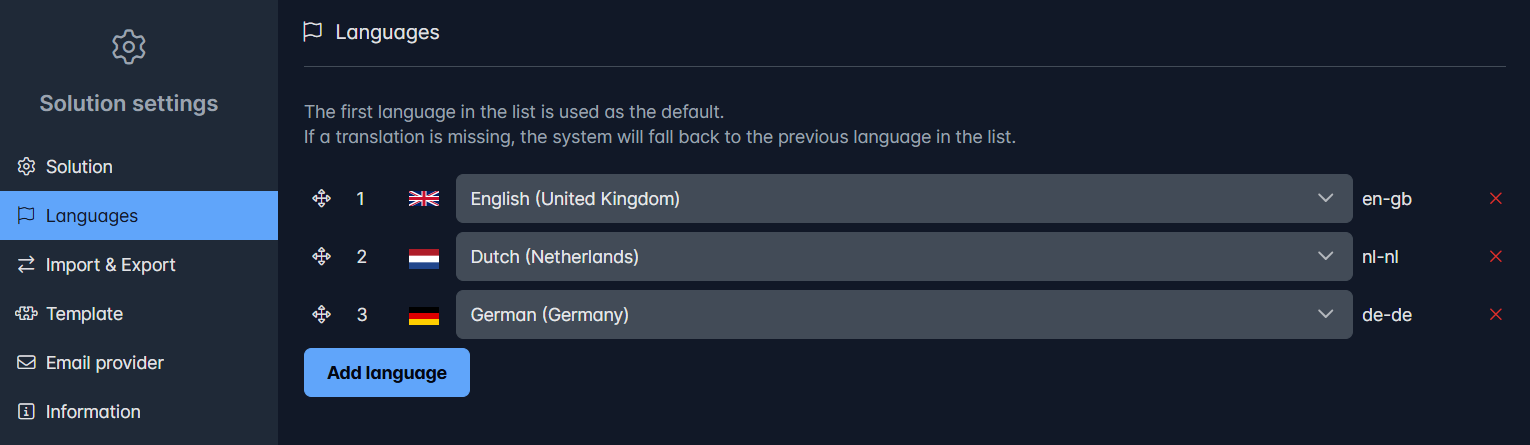
Anywhere language is used, such as with labels, an alternative language can now be specified 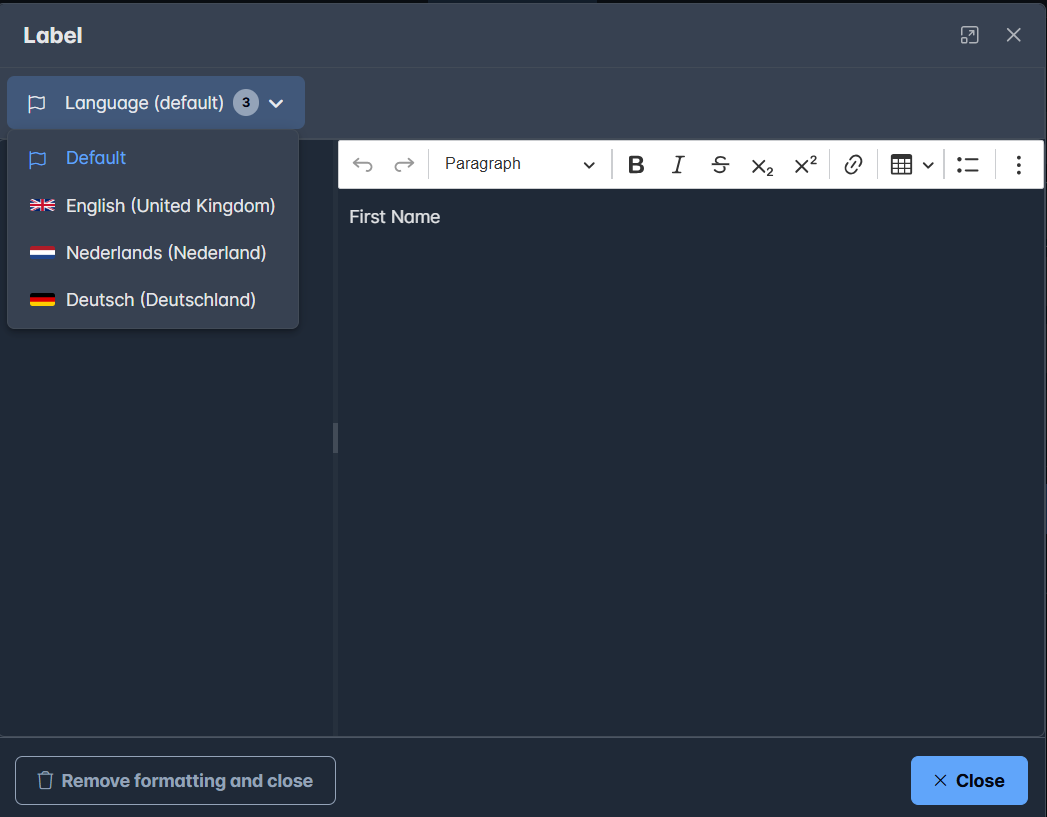
Optionally, the new Language switch element can be used to allow the user to change the language 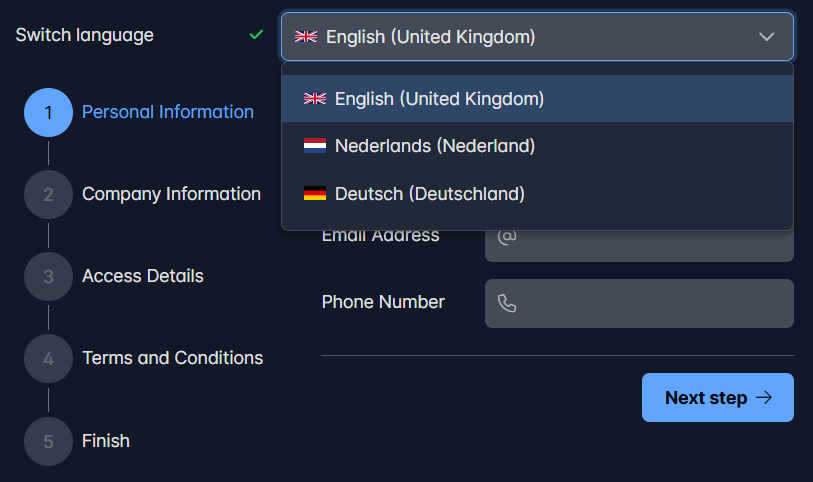
The language is specified in the URL Like https://studio.icadot.com/en-us
The data on a page can also be provided in multiple languages. This only works for text input fields: 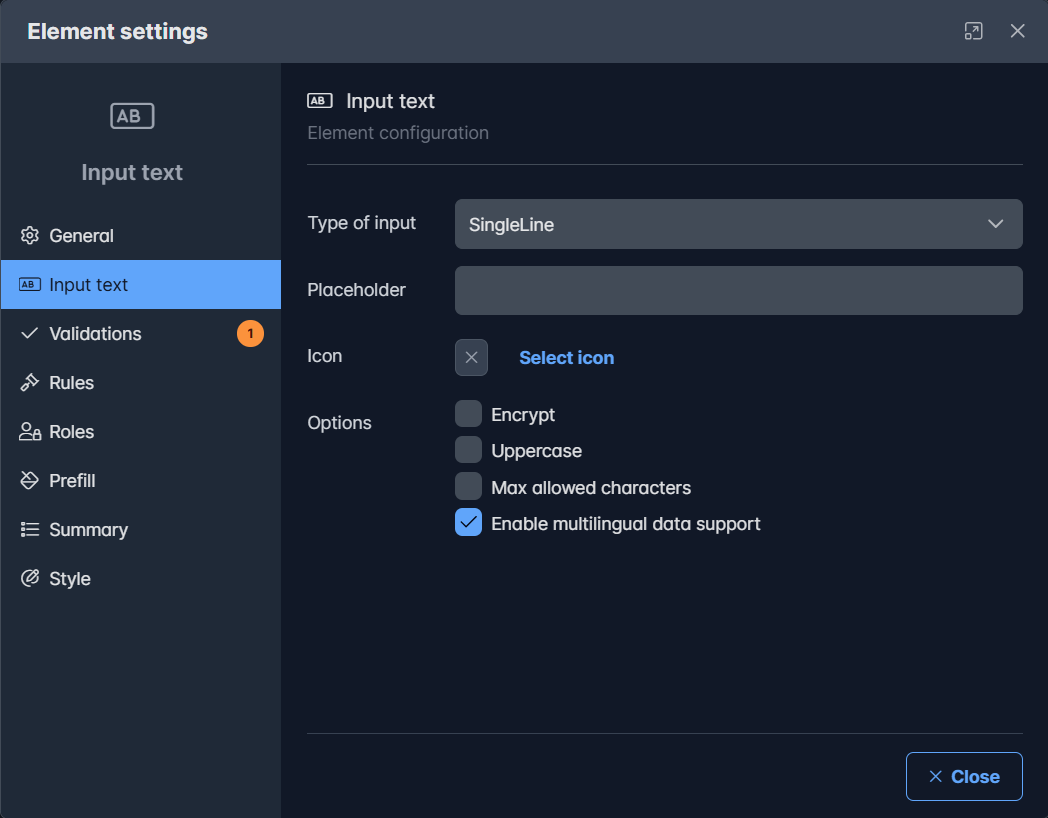
For the Input Text element, choose the ‘Multilingual data’ option
When using the application, the data can then be entered in multiple languages 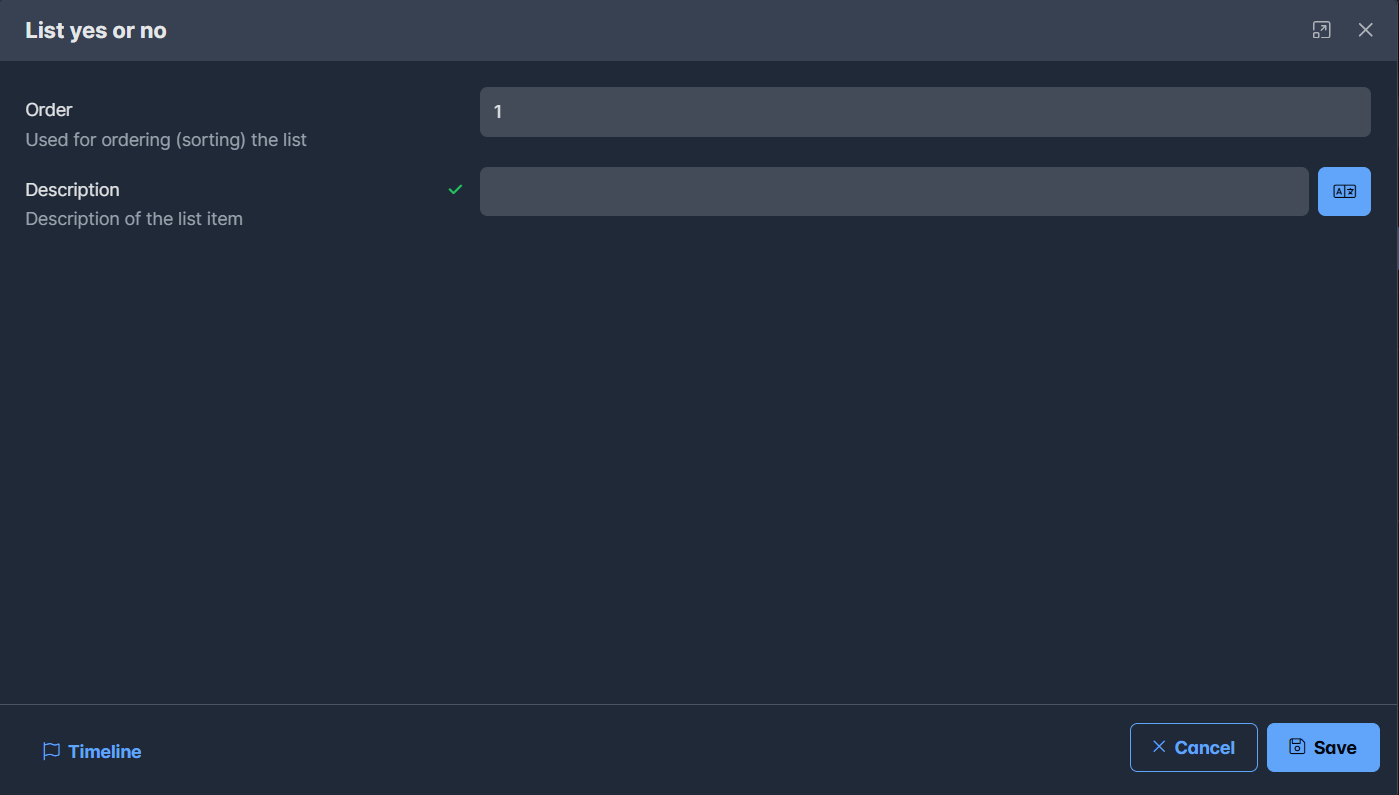
When pressing the translation button, the data can be translated, depending on the supported languages by the solution 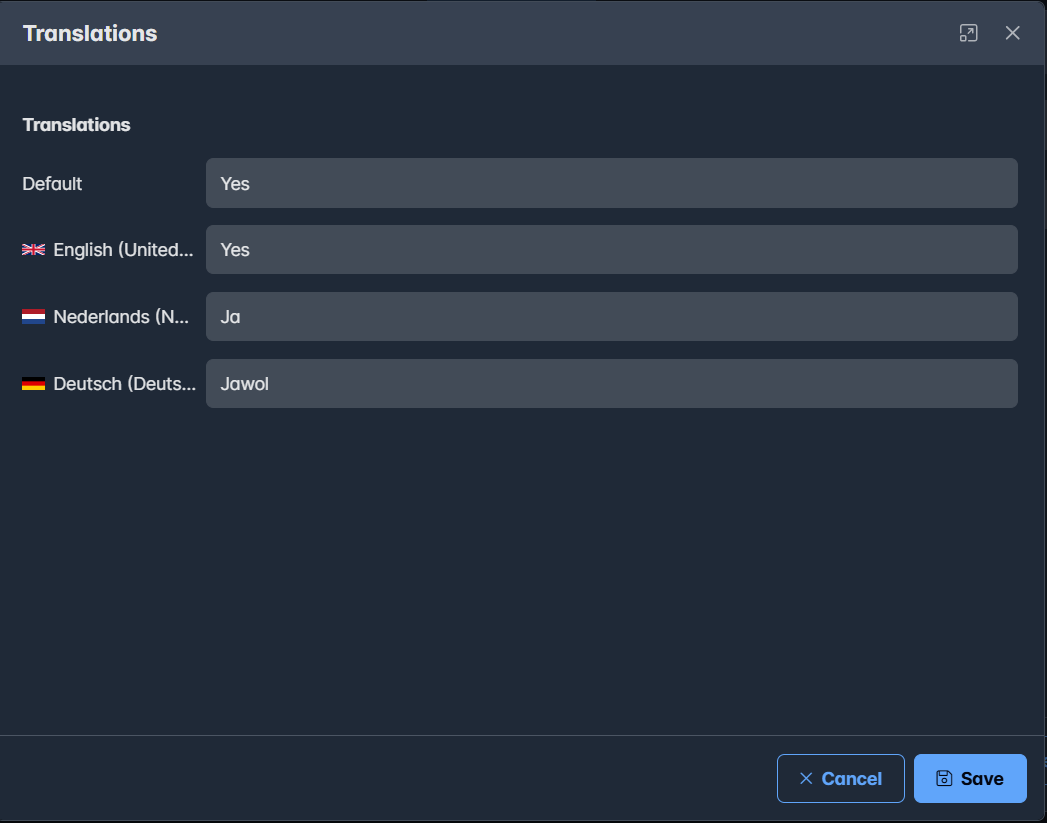
Example video:
Notes:
Notes
- If a language is not available (not configured), the first solution language will be used. If not set, the browser language is used as default
- When displaying information in tables, the data is shown in the selected language
- When searching, all languages are included (so searching for ‘Yes’ will also find ‘Ja’, ‘Jawol’, ‘Si’, etc.)
Supported system languages
Icadot supports the following system languages for translating system labels: English, Dutch, French, German, Spanisch and African.
Important - changed location of the default language
For all non-multilingual solutions, the default language can be set in the language tab of the solution settings.
Page version management
To manage page versions, an option has been added in the page editor: Extra > Page versions
Within this option, you can browse through page versions, view the differences compared to the previous version (Compare), and also restore a version. The current version in the editor will then be updated with the selected version. 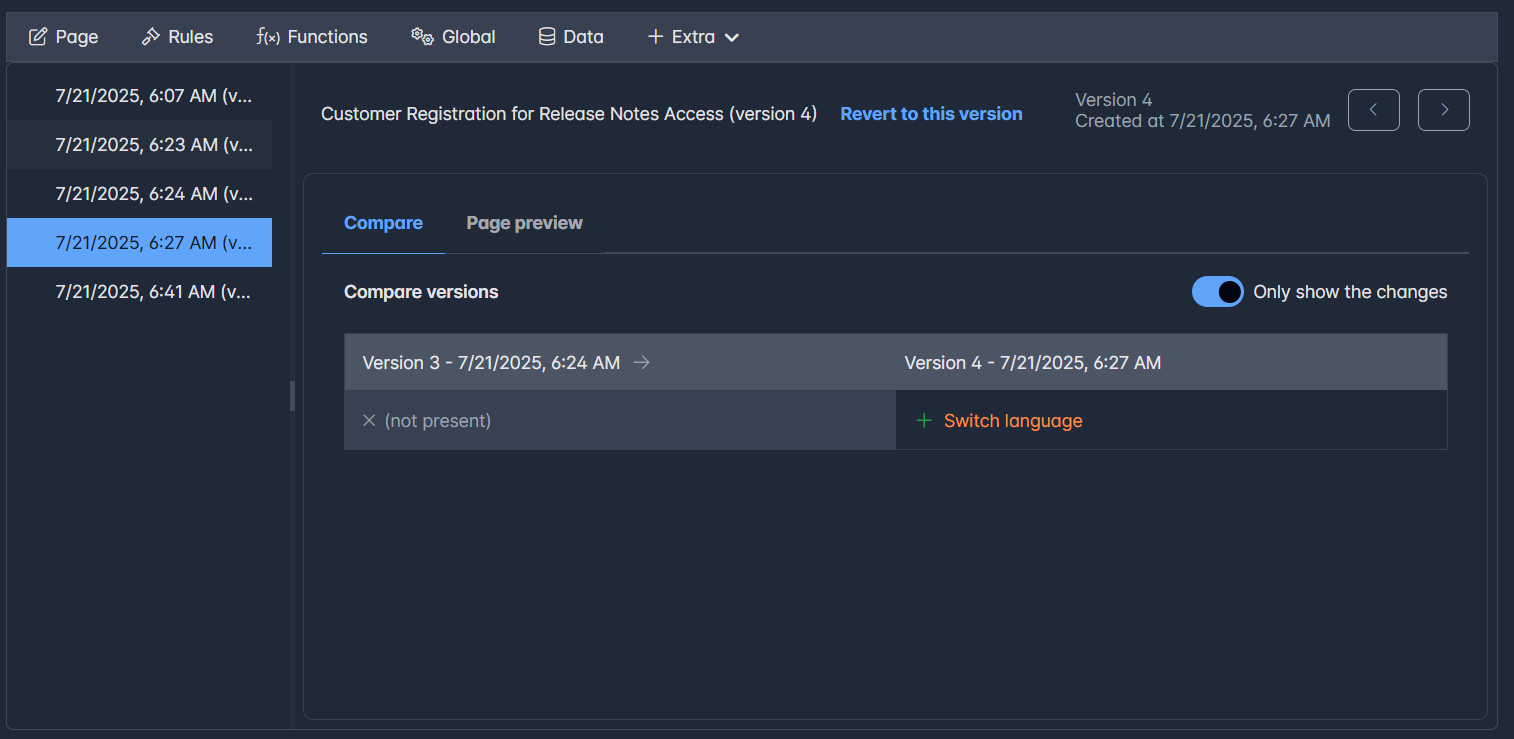 In this example the Switch language element is added in version 4.
You can navigate between the version by clicking on the version in the menu on the left or using the next/previous buttons on the right top of the manager. When clicking on
Recycle bin
A recycle bin has been added to allow deleted pages to be restored or permanently deleted. 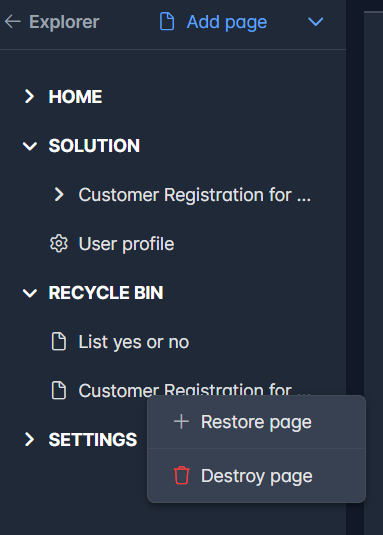
- The Restore page option will reactivate the page. This change will only take effect after saving.
- The Destroy page option will permanently delete the page. All versions and related items, such as lists, will be permanently deleted. The data associated with the page will also be deleted.
Improvements
- The inspector now also inspects lists, views and documents